
How to Repurpose a Webinar into Short Video Clips
How to turn your webinar recordings into short social clips for LinkedIn, YouTube Shorts, and Instagram Reels — without hiring a video editor. Step-by-step workflow.
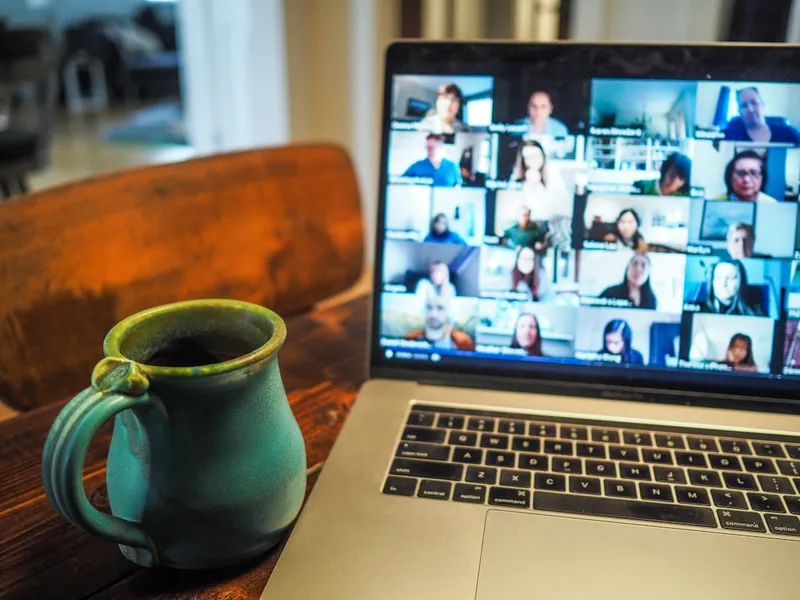
You spent weeks planning your webinar, hours preparing your presentation, and thousands of dollars on promotion. Then the live event ended, you sent out the recording link, and that was it. One piece of content, one audience, one moment in time.
The most successful webinar marketers do something different: they treat the webinar recording as raw material, not the final product. A 60-minute webinar contains enough short-form content to post once a day for two weeks — on LinkedIn, YouTube Shorts, Instagram Reels, and TikTok simultaneously.
Here's exactly how to build that workflow.
Why Webinars Are Underused for Short-Form Content
Most teams have a mental block: they associate webinar content with formal, long-form distribution (replay emails, gated recording pages). Short clips from webinars feel like a contradiction.
In practice, webinar clips outperform generic social content because they're content-rich. A webinar speaker is sharing genuine expertise in response to audience questions — that authentic, information-dense format is exactly what short-form algorithms reward. A 45-second clip that drops a framework or reveals a counterintuitive stat performs better than a scripted, polished branded video almost every time.
What Makes a Good Webinar Clip
Not every minute of a webinar translates to social content. Before extracting clips manually (or letting AI do it), know what to look for:
The stat or data reveal
"73% of marketers say X, but only 12% actually do Y." A crisp, surprising data point delivered with confidence is immediately shareable. These clips get saved and reshared because they provide conversation fodder.
The framework moment
When a speaker names a repeatable system or process — "Here's the three-step framework I use for..." — the clip becomes a standalone resource. Viewers save it to reference later, which signals high value to the algorithm.
The Q&A highlight
Audience Q&A generates some of the best short clips because it's unscripted. A sharp question and a sharp answer, in 45 seconds, is naturally watchable content. The question-answer structure is also easy to caption and comprehend without audio.
The contrarian or counterintuitive point
If your speaker challenges conventional wisdom — "Actually, posting more often is hurting most teams" — that's a clip. Counterintuitive statements generate comments, debate, and shares far more than agreeable content.
The transformation story
A case study or client result with a clear before/after structure makes an excellent clip. "They went from X to Y in 60 days" with a brief explanation is a complete piece of content on its own.
The Workflow: From Webinar Recording to Published Clips
Step 1: Get the recording in the right format
Download the recording from your webinar platform (Zoom, GoToWebinar, Riverside, StreamYard). Most platforms export MP4 files at 1080p or 720p. If you're using a platform that exports separate audio and video tracks, combine them first in any basic editing tool before uploading to a clip tool.
Step 2: Upload to an AI clip extraction tool
Upload your recording to Short.now's Webinar to Clips tool. The AI analyzes the full recording and identifies clip candidates based on speech patterns, energy levels, and content structure — automatically surfacing the stat reveals, frameworks, and Q&A highlights described above.
For a 60-minute webinar, processing takes a few minutes. You'll get 8–15 ranked clip candidates, with captions already generated and 9:16 reframing applied.
Step 3: Review and select your clips
Review the ranked candidates. For each one, ask:
- Does it start with a strong hook (a bold claim, a surprising data point, or a clear value promise)?
- Does it stand alone — can someone understand it without having watched the webinar?
- Is it under 60 seconds? (Longer clips work on LinkedIn but hurt performance on Shorts and Reels.)
Select 6–10 clips to move forward with. You don't need to publish all of them at once — 6 clips from one webinar gives you 6 posts across two weeks.
Step 4: Customize for each platform
With an AI tool like Short.now, captions are already generated and 9:16 is handled. But platform-specific adjustments matter:
- LinkedIn: Keep 9:16 for mobile scroll or use 1:1 for LinkedIn's desktop feed. Add a text caption in the LinkedIn post body with the key insight from the clip — LinkedIn's algorithm rewards posts that add text context alongside video.
- YouTube Shorts and TikTok: 9:16 vertical, captions large and centered, trim clips tightly (30–60 seconds).
- Instagram Reels: 9:16, captions positioned above the bottom UI bar, clips 15–60 seconds.
Step 5: Schedule distribution across the week
Don't publish all clips at once. Spread 6 clips across 2 weeks:
- Week 1: 3 clips on your best-performing platforms (likely LinkedIn + YouTube Shorts or Reels).
- Week 2: Cross-post remaining clips to secondary platforms, or use the second batch on the same primary platforms.
Short.now's built-in scheduling on paid plans lets you set the publish date and time for each clip from the same interface you created them in.
Platform-Specific Tips for Webinar Clips
Webinar clips are the highest-performing organic video content type on LinkedIn for B2B brands. Business insights, data reveals, and professional frameworks get saved, shared, and commented on heavily. Add a strong hook in the LinkedIn post text (not just the video) — the text drives additional reach through LinkedIn's feed algorithm.
YouTube Shorts
Educational and informational clips perform well on Shorts. A 45-second framework explanation or a data-driven insight gives viewers a clear reason to click through to the full webinar recording if you link it in the description. Shorts from webinar content can be an effective way to drive replays.
Instagram Reels
The most transformation-oriented clips perform best on Reels. Client results, before/after case studies, and "what I learned from" stories get better completion rates on Instagram than pure information delivery.
Building a Webinar Clip Library
Once you're processing new webinars, go back to your archive. Every past webinar your organization has recorded is a content asset. A webinar from 18 months ago on a topic that's still relevant can produce clips that perform identically to new content — most new viewers haven't seen the original.
Many marketing teams use Short.now to batch-process their entire webinar archive, producing months of social content in a single day. The older content that generates the most engagement gets featured again — creating a content flywheel that compounds without requiring constant new production.
Try Short.now's Webinar Clip Maker on your next recording — upload the MP4, review the AI's clip candidates, and publish your best clips the same day the webinar ends. Free for 3 videos per month.
Frequently Asked Questions
Internal webinars or confidential customer sessions should not be repurposed publicly without explicit permission from participants. Public-facing webinars (product launches, educational content, thought leadership sessions) are appropriate for clip repurposing. Always check your participant consent terms before publishing any recording or excerpt.
For clips, the speaker camera view is more effective than slide-only recordings on social media. If your webinar recording includes both a talking-head camera and screen share, use the camera view for clips — the speaker's face and delivery drive watch time far better than slides. If you only have a screen recording with audio, use that with Short.now's waveform background + caption overlay format.
30–60 seconds is the sweet spot for most platforms. LinkedIn can support slightly longer clips (up to 90 seconds) if the content is strong. For the Q&A format specifically, 45–60 seconds — one question, one answer — performs consistently well because the structure gives viewers a clear beginning, middle, and end.
Subtle branding (a small logo in the corner) is fine. Aggressive branding — full-screen intros, heavy lower-thirds — hurts watch time because it signals "advertisement" to viewers who are primed to scroll past branded content. Keep the visual focus on the speaker and the content. Your brand builds through consistent presence, not through a logo that takes up 20% of the frame.
Ready to stop editing and start publishing?
Short.now turns your long videos into scroll-stopping shorts automatically — in under 2 minutes.
Get started free 3 free videos every month · No credit card needed